
General guidance
This site is built from Jupyter notebooks and Markdown files using Jupyter Book. You can take a look at the source code, if curious.
Labs are structured, while Projects are more open-ended. Both are meant to be challenging, but not impossible.
Try and work through problems on your own to start. If you are stuck for more than a half hour, step away. If you still can’t figure it out, ask for help.
Downloading notebooks
For lecture slides / labs, download the page as a notebook to work with it locally.
Open the page for the Homework/Lecture on this site.
For example: Lab 9
Hover over the download icon (⬇️) in the toolbar at the top.
Click
.ipynb.Feel free to move the file wherever you like.
Open the notebook in VSCode.
That is now your own copy; you can execute/add cells as you like, including adding your own notes in Markdown cells. For Labs, the intention is for you to turn in the template via Gradescope, filled in with your code.
Activate the environment
(in the Terminal)
Activate the environment, if it isn’t already.
Mac:
source .venv/bin/activateWindows (PowerShell):
.venv\Scripts\Activate.ps1Get an execution policy error? See the Note in the
venvdocumentation, then retry.
It should then show (.venv) at the beginning of your terminal prompt.
Installing packages
This will need to be done any time you add packages. Avoid using pip install [package].
Add packages to a
requirements.txtfile.Install the packages.
pip install -r requirements.txt
Common issues
Jupyter in VSCode
This was set up in Lecture 16.
We’ve run into issues with being unable to select the kernel. Try each of the following:
Ensure you’re on the latest versions of:
Restart VSCode (quitting the full app, not just the window).
Confirm that the packages were installed in the virtual environment, not globally.
Jupyter Book
Jupyter commandjupyter-booknot found.:Double-check you’ve done the install.
Plotly visualizations aren’t appearing:
Add the following to the top of your notebook:
# ensure the visualizations render properly across VSCode, Jupyter Book, etc.
# https://plotly.com/python/renderers/

import plotly.io as pio

pio.renderers.default = "notebook_connected+plotly_mimetype"
Re-run your notebook.
Not displaying properly
If your published site looks like this:
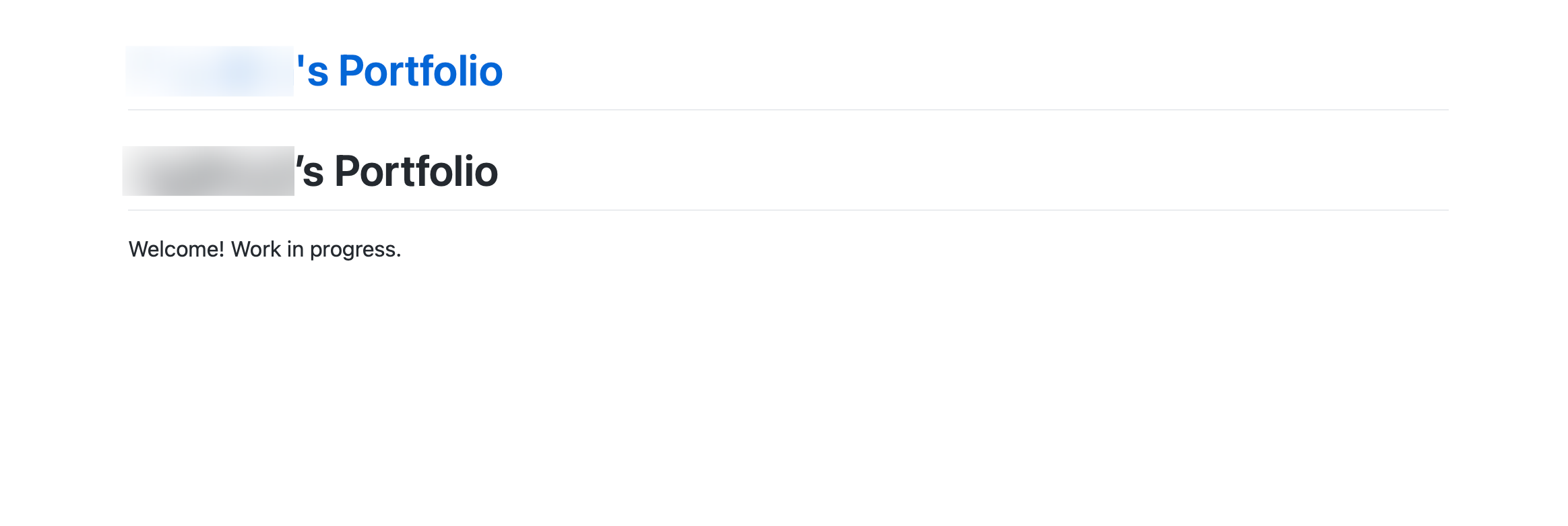
No navigation, search, etc.
and you see a pages-build-deployment under your Actions:
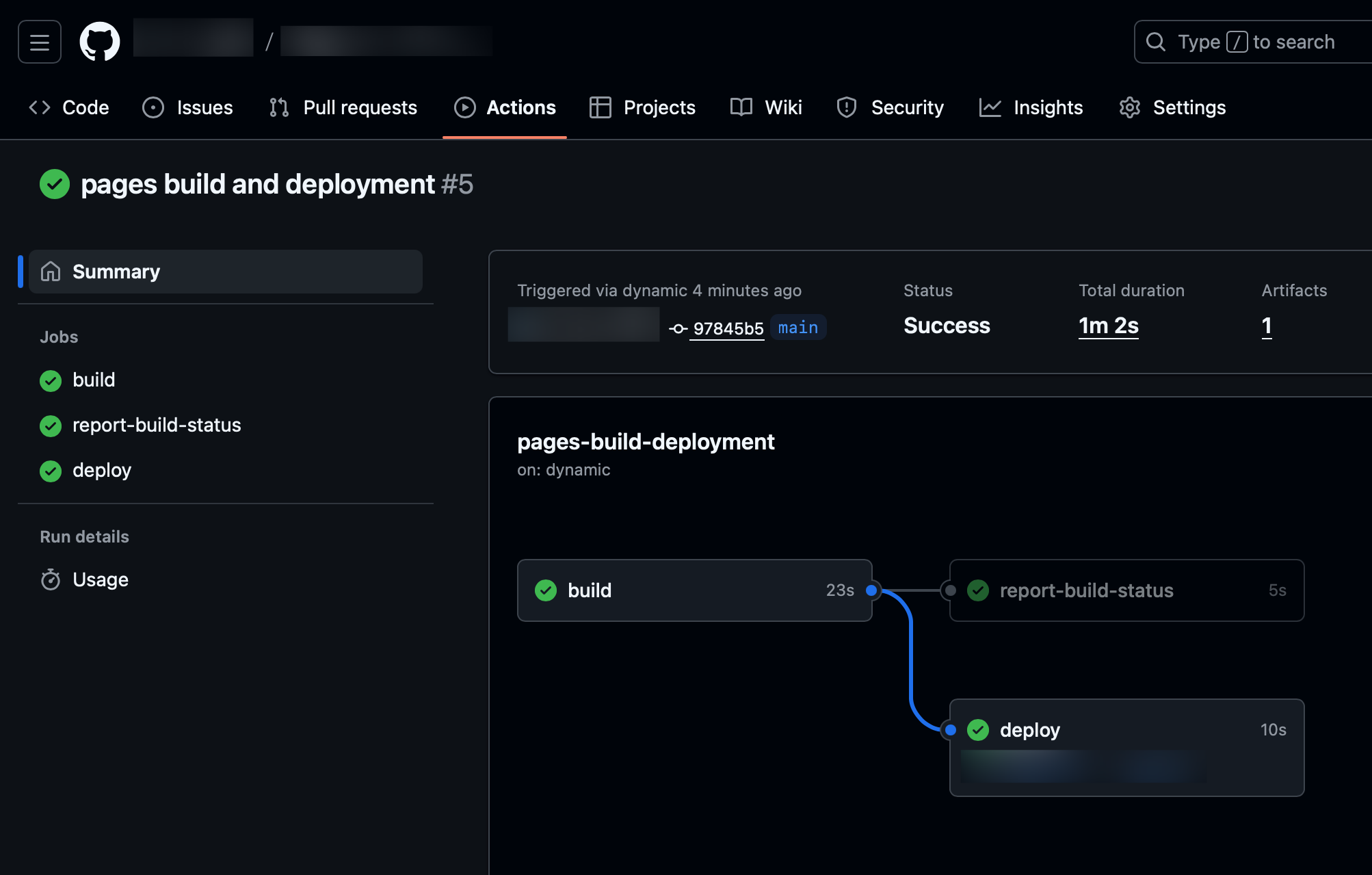
Go through the instructions again.
Commit and push a change.
It can be small.
After build, confirm your site has navigation similar to this:
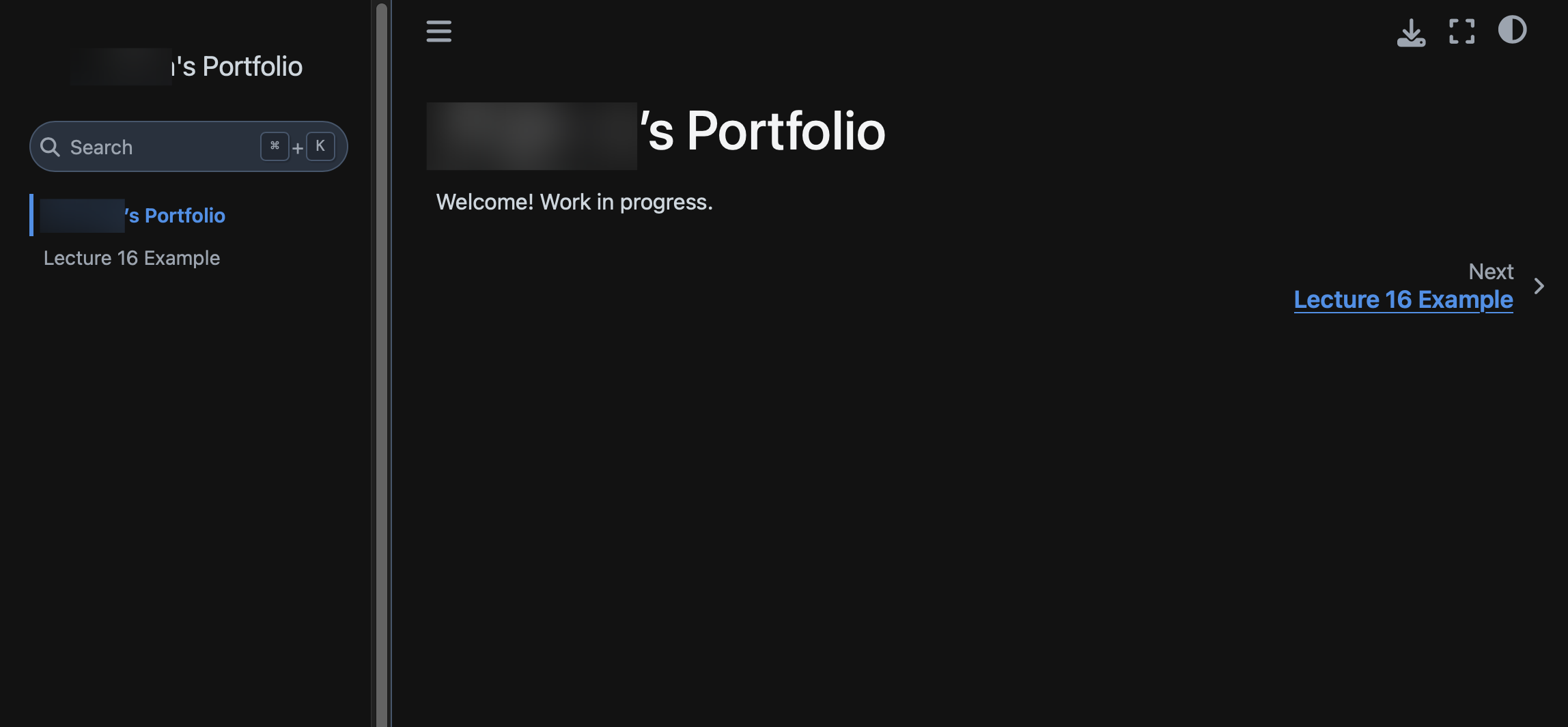
Submission
You will submit via Gradescope.
Lab 8: Submit the URL to your portfolio site (
https://[username].github.io/).Add the notebook to your portfolio site.
Add to the table of contents.
Push the page.
Confirm it appears at
https://[username].github.io/project_[n].html(or similar).
Submit the link to the new page (like
https://[username].github.io/project_[number].html).
Other Labs: Upload your notebook.
You can ignore Gradescope saying “Large file hidden”. The TAs can download the notebook to view.
Gradescope limits submissions to 100MB. If you’re unable to submit for this (or any other) reason, reach out to the TAs.